
Stock Updates (Inventory Sync)
Stock Updates keeps your Shopify stock levels synchronized with OrderWise. ShopWise reads export data from OrderWise containing each variant's SKU and free stock, then updates the matching Shopify variant.
How It Works
- Matching: Shopify variants are matched by SKU (variant code)
- Data Source: OrderWise export definition provides SKU and free stock data
- Update Frequency: ShopWise checks for updates every 15 minutes
- Sync Direction: OrderWise → Shopify (one-way sync)
Prerequisites
Before setting up stock updates, you need to create an OrderWise API Export Definition.
Step 1: Create OrderWise API Export Definition
- Open OrderWise
- Click E-Commerce (bottom-left menu)
- Click API Export Definitions (top-left menu)
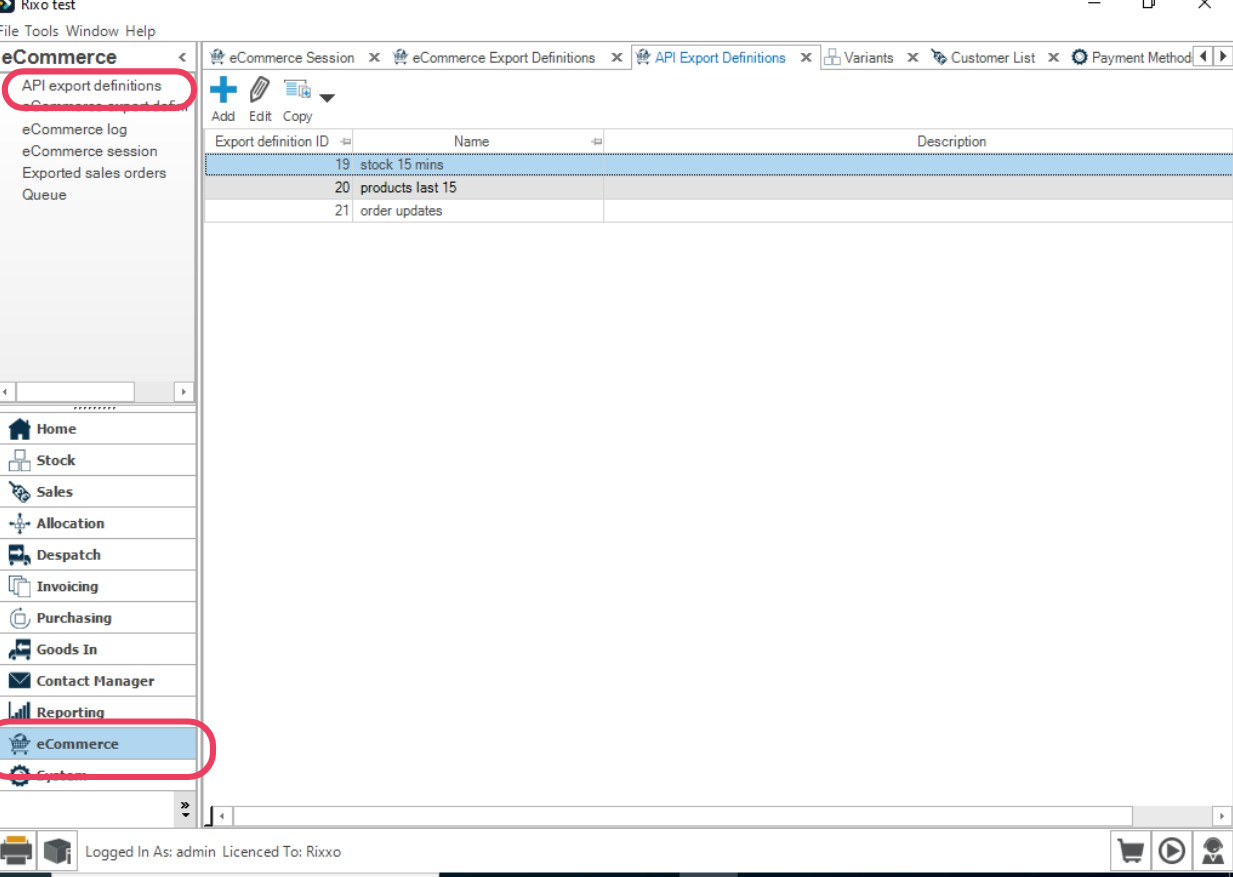
- Click Add
- Name it clearly, e.g., ShopWise Stock Sync
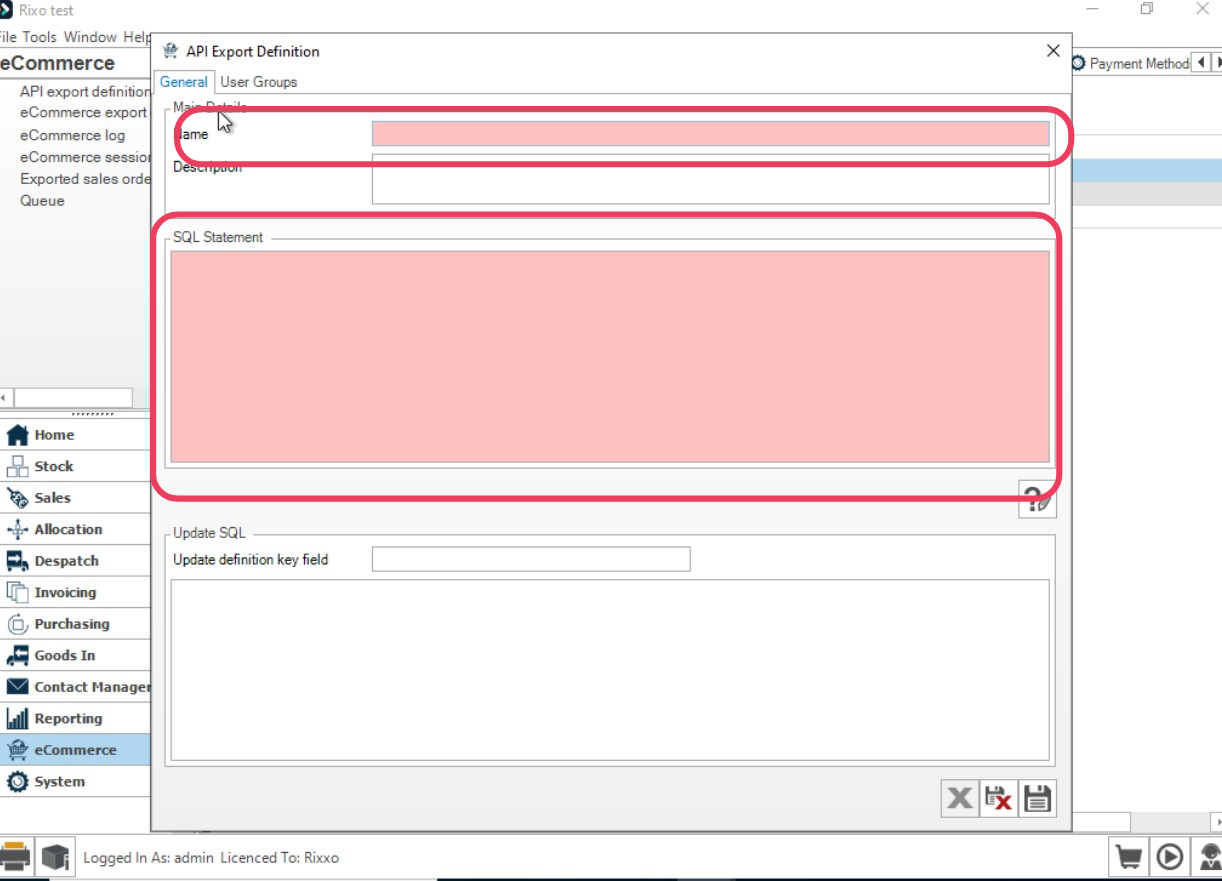
- In SQL Statement, copy the following:
-- Adjust the time window to suit. -15 = last 15 minutes, -1500 ≈ last 25 hours.
WITH DateCheck AS (
    SELECT DATEADD(MINUTE, -15, GETDATE()) AS DateWindowStart
)
SELECT
  variant_detail.vad_variant_code                 AS sku,        -- REQUIRED: used to match Shopify variants
  variant_stock_quantity.vasq_free_stock_quantity AS freeStock   -- Free/available stock to publish to Shopify
FROM variant_detail
INNER JOIN variant_stock_quantity
  ON variant_detail.vad_id = variant_stock_quantity.vasq_vad_id
CROSS JOIN DateCheck
WHERE
  vasq_stock_levels_last_calculated >= DateWindowStart;
Step 2: Get the Export Definition ID
- In API Export Definitions, right-click the grid and choose Edit Grid Layout
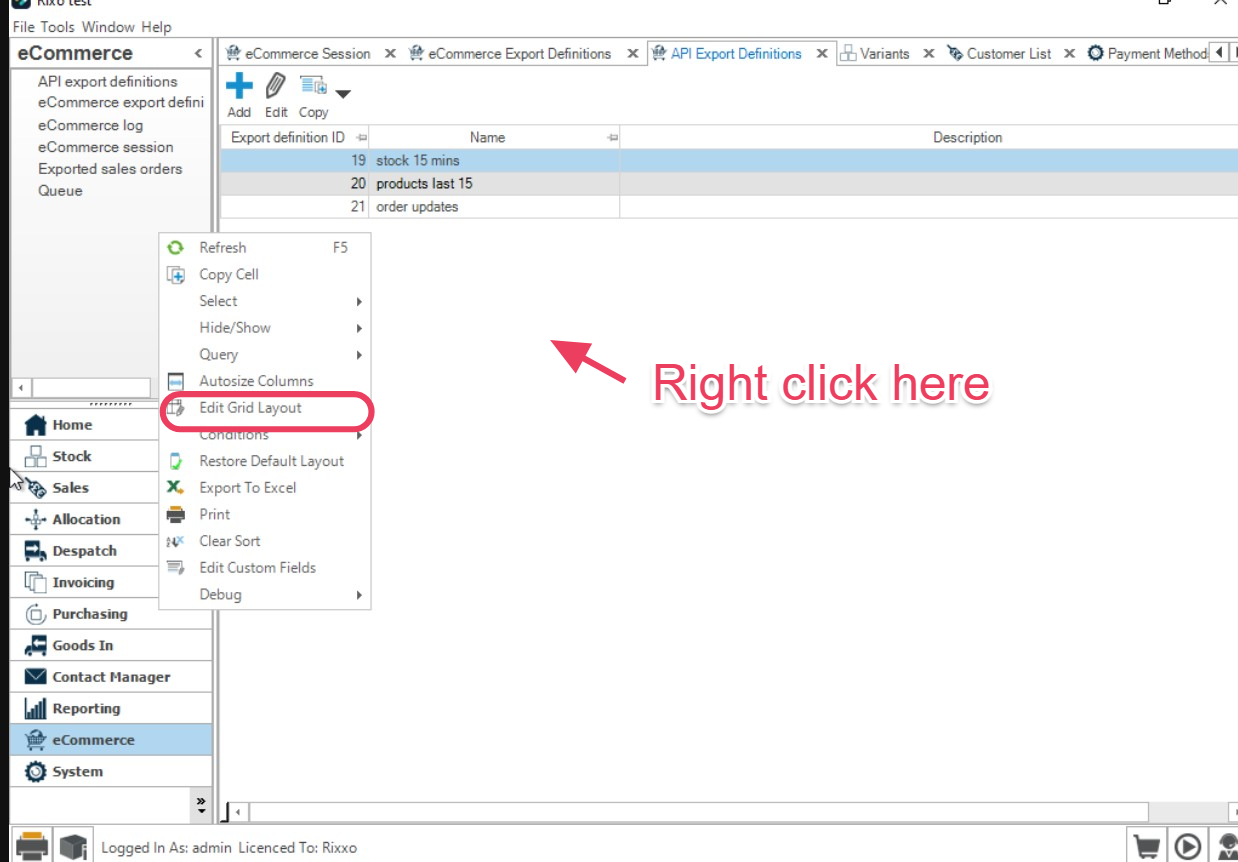
- Add Export Definition ID to the grid
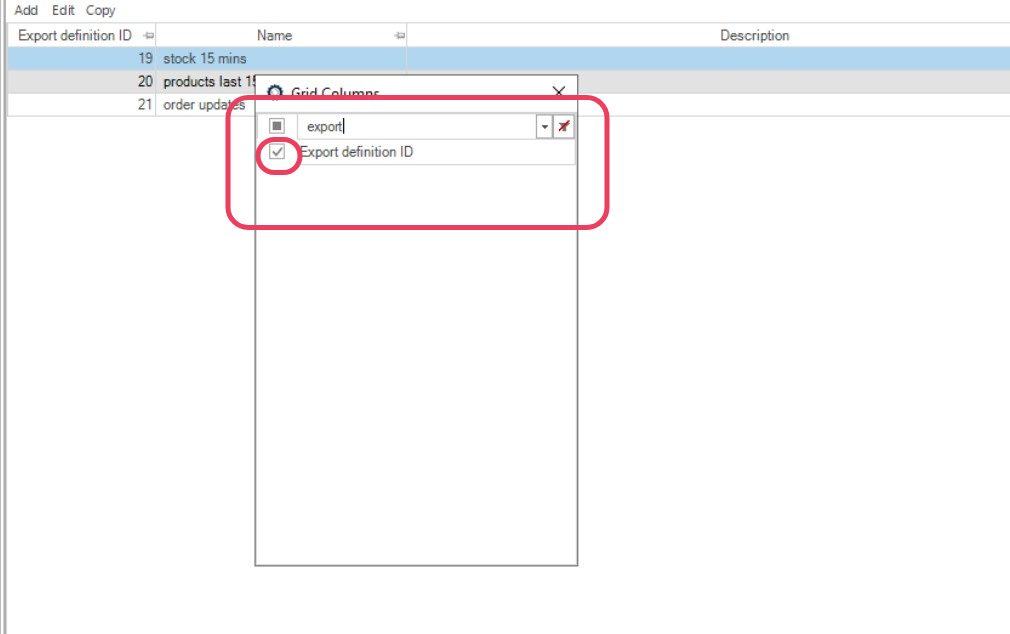
- Save and note the Export Definition ID for your new export
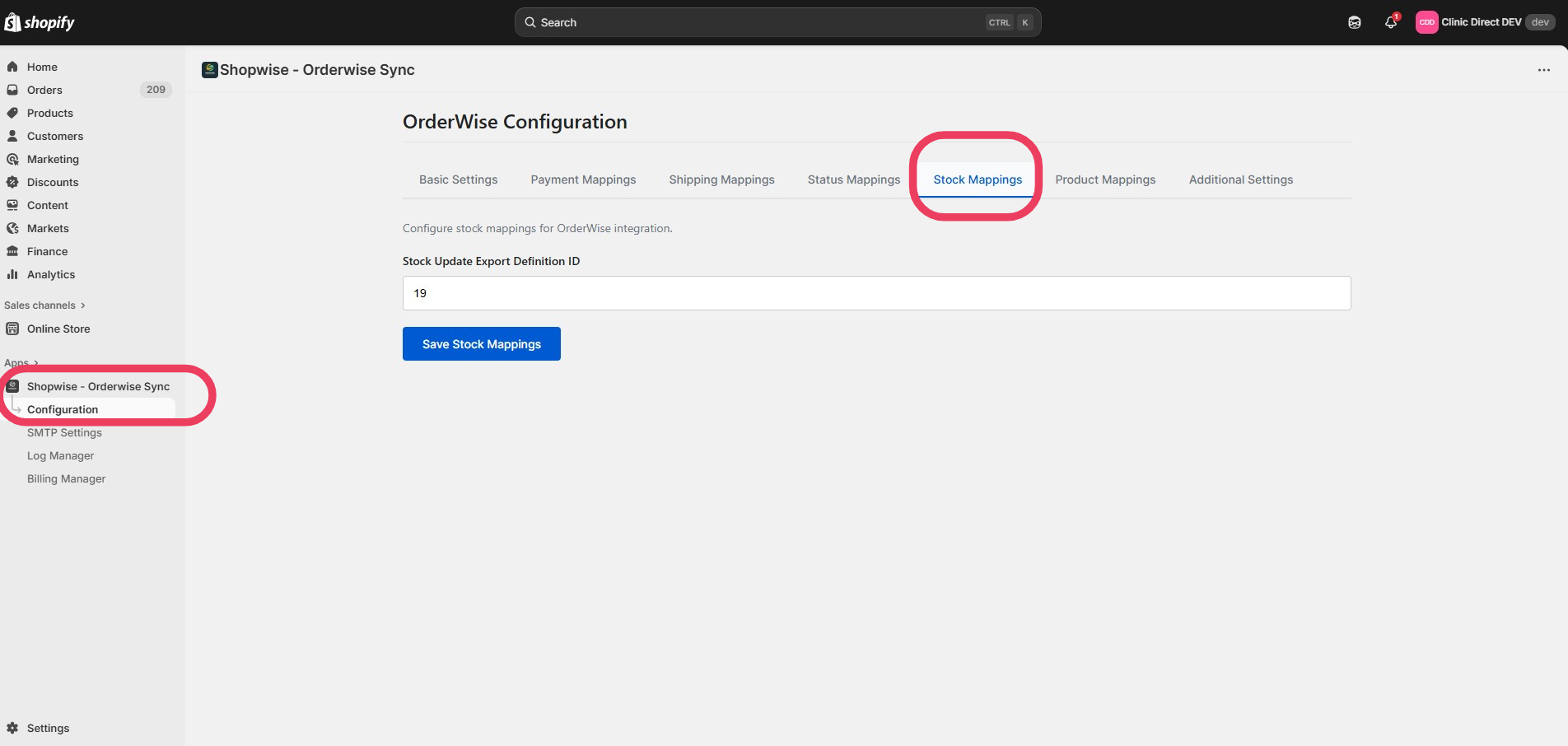
Configure in ShopWise
- Open ShopWise in your Shopify admin
- Go to Configuration → Stock Mappings
- Enter the Stock Export Definition ID from OrderWise
- Click Save
Example Output
The export definition returns data in this format:
{
  "sku": "ABC-100-RED",
  "freeStock": 23
}
Important Notes
Time Window Configuration
- Default: 15 minutes (matches ShopWise polling frequency)
- For ~25 hours: Use
DATEADD(MINUTE, -1500, GETDATE()) - Recommendation: Keep window ≥ 15 minutes to avoid missing updates
Field Requirements
- Do not change field names (
sku,freeStock) - SKU must match exactly (case-sensitive, including spaces)
- freeStock: Usually represents available/allocatable stock
Performance Considerations
- Filter by changed rows only (as shown in SQL)
- Consider adding warehouse/site filters if needed
- Large datasets may require additional optimization
Troubleshooting
Common Issues
SKU Mismatch
- Ensure OrderWise
variant_codeexactly matches Shopify variant SKU - Check for extra spaces, case differences, or special characters
No Stock Updates
- Verify Export Definition ID is correct
- Check that export returns data for recent changes
- Ensure time window includes recent stock changes
Performance Issues
- Consider filtering by product categories or warehouses
- Adjust time window based on your update frequency needs
- Monitor export performance in OrderWise
Verification Steps
- Check Export Data: Run the SQL query directly in OrderWise
- Verify SKUs: Compare OrderWise variant codes with Shopify SKUs
- Monitor Logs: Check ShopWise logs for sync errors
- Test Updates: Make a stock change in OrderWise and verify Shopify updates
Next Steps
With stock updates configured:
- Payment Mapping - Set up payment method mapping
- Shipping Mapping - Configure shipping method mapping
- Status Mapping - Set up order status synchronization
Stock sync working? Proceed to Payment Mapping to configure payment method mapping.