
Getting Started
This guide will help you get started with the Shopwise app and access its settings within your Shopify admin.
Accessing the App Settings
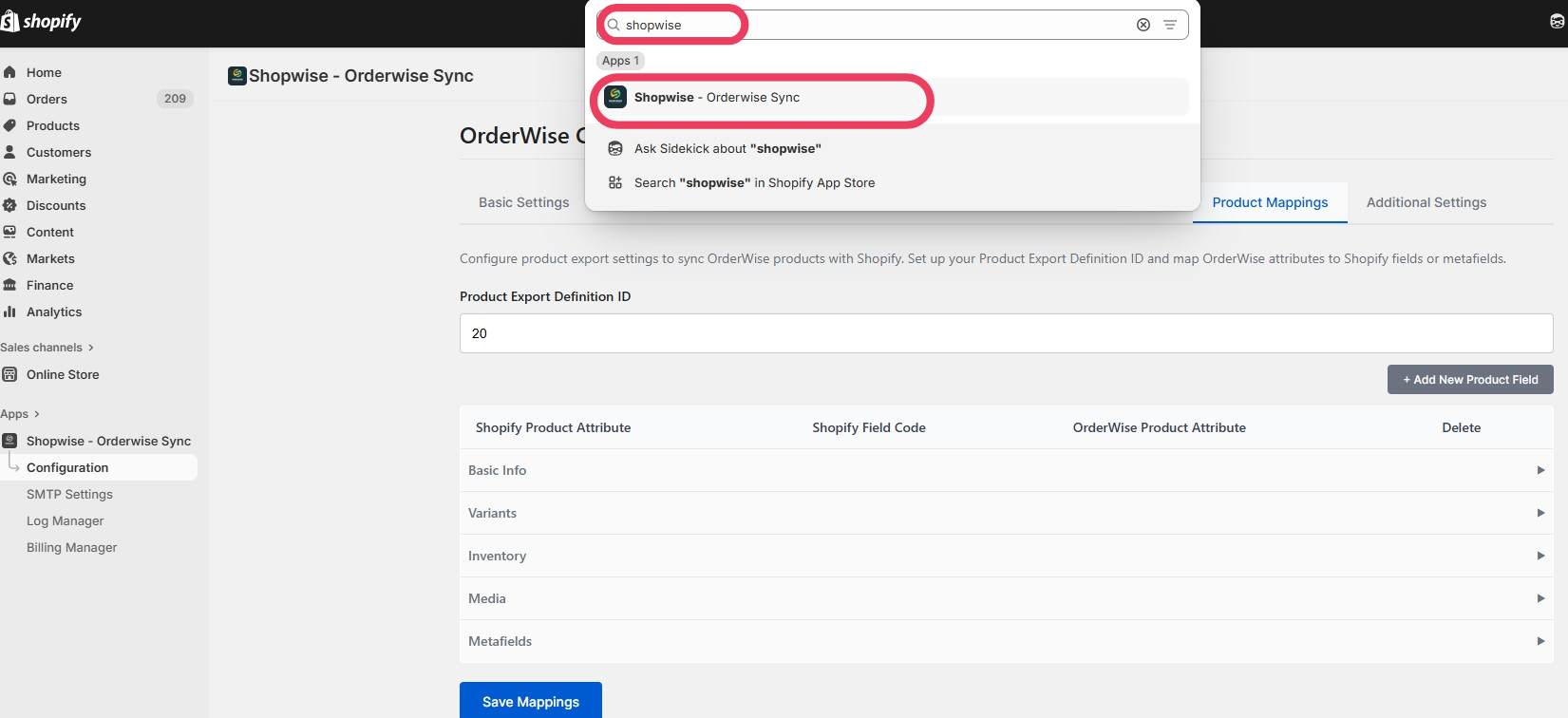
The Shopwise application is managed from within the Shopify admin panel.
To access the app settings:
- Go to your Shopify admin panel
- Click on 'Apps' or use the search bar at the top
- Look for the 'Shopwise' app
- Click on the app to open its settings
App Sections Overview
The Shopwise app contains the following 5 main sections:
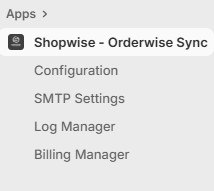
For the Orderwise integration, we primarily work with:
- Orderwise Integration - Main configuration settings
- Log Manager - Monitoring and troubleshooting
Prerequisites
Before you begin setting up the integration, ensure you have:
Orderwise Access
- Admin access to your Orderwise instance
- Knowledge of your Orderwise base URL
- Ability to create API export definitions
- Access to e-commerce session management
Shopify Access
- Admin access to your Shopify store
- Ability to install and configure apps
- Access to product and order management
Technical Requirements
- Email address for notifications
- Understanding of your Orderwise data structure
- Knowledge of your Shopify product SKUs and variants
Next Steps
Once you have access to the app settings, you're ready to:
- Set up your Orderwise session - Configure the e-commerce session
- Configure the integration - Set up all mapping and sync settings
- Test the connection - Verify everything is working correctly
Need Help Getting Started?
Get in touch with the Shopwise team.
Support
If you encounter any issues during setup:
- Check the Troubleshooting Guide
- Review the Log Manager for error details
- Ensure all prerequisites are met before proceeding
Ready to continue? Proceed to Session Setup to configure your Orderwise e-commerce session.