
Payment Mapping
Payment mapping allows you to map Shopify payment methods to corresponding OrderWise payment method IDs. This ensures orders are processed with the correct payment information in OrderWise.
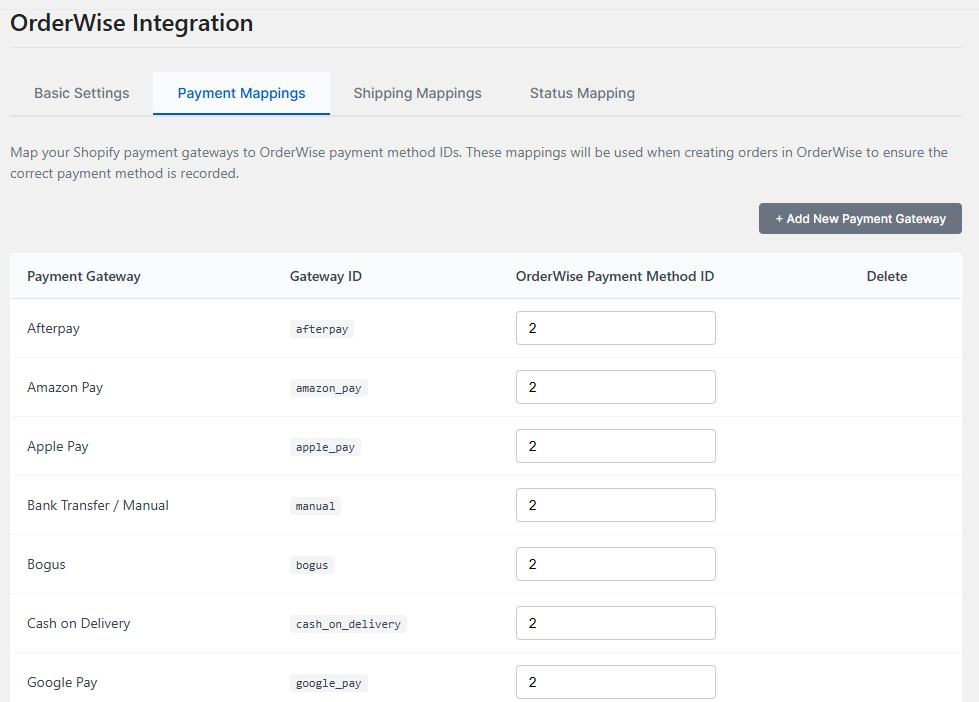
How Payment Mapping Works
- Shopify Payment Methods → OrderWise Payment IDs
- Automatic Mapping: Orders use the mapped payment method when sent to OrderWise
- Flexible Configuration: Add new payment methods as needed
- Gateway Matching: Uses Shopify's gateway ID for accurate identification
- Payment Exclusion: Option to exclude payment information from OrderWise order payload for specific payment methods
Finding OrderWise Payment IDs
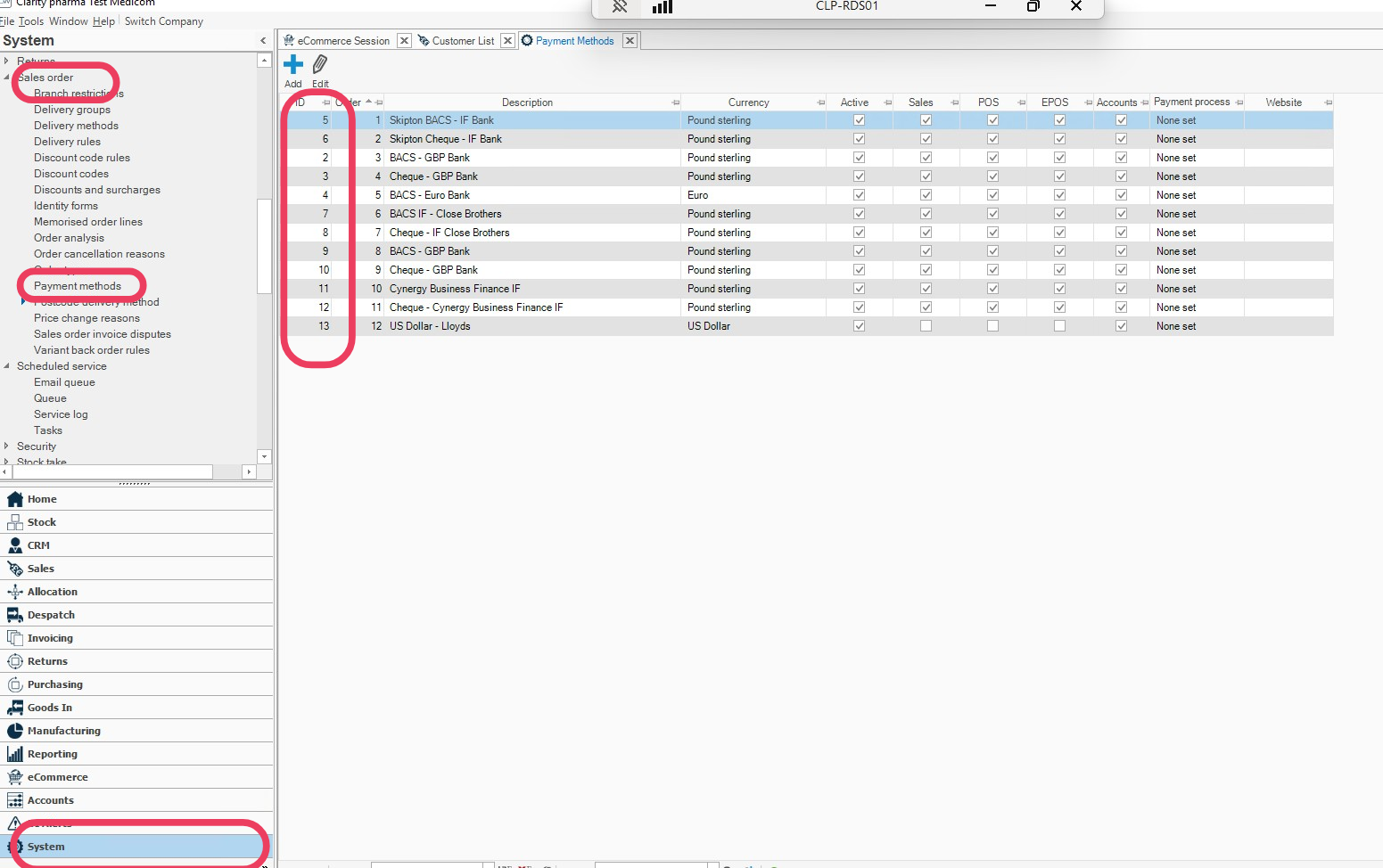
To map payment methods, you need the payment method IDs from OrderWise:
- Log in to OrderWise
- Click System in the bottom left menu
- Navigate to Sales Order → Payment Methods in the top left menu
- Right-click on the screen and select Edit Grid Layout
- Add the ID column to the grid
- Note the IDs for each payment method you want to map
Adding Payment Method Mappings
Step 1: Add New Payment Gateway
- In ShopWise, go to Configuration → Payment Mappings
- Click Add new payment gateway in the top right
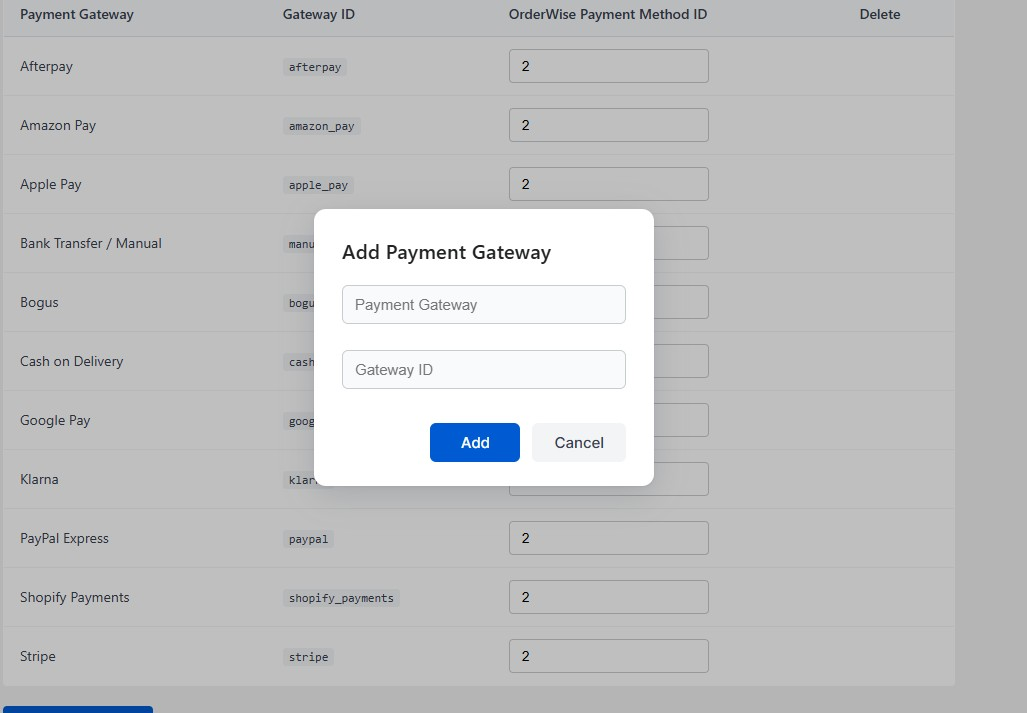
Step 2: Configure Payment Method
You'll be asked to provide:
1. Payment Gateway
- This is the display name for the payment gateway
- Used as the admin label in ShopWise
- Example: "Credit Card", "PayPal", "Bank Transfer"
2. Gateway ID
- This is the ID that Shopify uses for the gateway
- Must match exactly or the mapping won't work
- Found in Shopify's payment settings or order data
Step 3: Map to OrderWise
- Enter the OrderWise Payment Method ID from the previous step
- Exclude from OrderWise Order Payload (Optional):
- Tick this box if you want to exclude payment information from the OrderWise order payload for this specific payment method
- This is useful for payment methods that don't need to be sent to OrderWise (e.g., external payment processors that handle payment separately)
- When ticked, the payment details will not be included when the order is sent to OrderWise
- Click Save to apply the mapping
Common Payment Methods
Credit Cards
- Gateway ID: Usually
credit_cardor specific processor name - OrderWise ID: Your credit card payment method ID
PayPal
- Gateway ID:
paypalorpaypal_express - OrderWise ID: Your PayPal payment method ID
Bank Transfer
- Gateway ID:
bank_transferormanual - OrderWise ID: Your bank transfer payment method ID
Cash on Delivery
- Gateway ID:
codorcash_on_delivery - OrderWise ID: Your COD payment method ID
Finding Shopify Gateway IDs
To find the exact Gateway ID that Shopify uses:
- Go to Settings → Payments in Shopify admin
- Check the payment provider settings
- Look at order details in Shopify to see the gateway used
- Use Shopify's API or admin interface to get exact gateway names
Excluding Payments from OrderWise Order Payload
For certain payment methods, you may want to exclude payment information from being sent to OrderWise in the order payload. This is useful for:
- External payment processors that handle payment separately
- Payment methods that don't require payment tracking in OrderWise
- Third-party integrations where payment is managed outside OrderWise
How to Exclude a Payment Method
- When configuring a payment method mapping, locate the Exclude from OrderWise Order Payload checkbox
- Tick the box to exclude payment information for this payment method
- Save the configuration
Note: When excluded, the payment details will not be included in the order payload sent to OrderWise, but the order itself will still be created.
Example Configuration
Payment Gateway: Credit Card
Gateway ID: credit_card
OrderWise Payment ID: 1
Exclude from Payload: No

Payment Gateway: PayPal Express
Gateway ID: paypal_express
OrderWise Payment ID: 2
Exclude from Payload: Yes (payment handled externally)

Payment Gateway: Bank Transfer
Gateway ID: bank_transfer
OrderWise Payment ID: 3
Exclude from Payload: No
Testing Payment Mapping
Verification Steps
- Create Test Order: Place a test order in Shopify with each payment method
- Check OrderWise: Verify the order appears with the correct payment method
- Review Logs: Check ShopWise logs for any mapping errors
- Test Edge Cases: Try orders with unmapped payment methods
Common Issues
Payment Method Not Mapped
- Check that Gateway ID matches exactly (case-sensitive)
- Verify OrderWise Payment ID is correct
- Ensure the payment method exists in OrderWise
Orders Using Wrong Payment Method
- Double-check Gateway ID spelling and format
- Verify OrderWise Payment ID corresponds to the intended method
- Check for duplicate or conflicting mappings
Best Practices
Naming Conventions
- Use clear, descriptive names for payment gateways
- Include the payment provider name when applicable
- Avoid special characters or spaces in Gateway IDs
Documentation
- Keep a record of all payment method mappings
- Document any special configurations or requirements
- Note any payment methods that don't need mapping
Maintenance
- Review mappings when adding new payment methods
- Update mappings if payment providers change
- Test mappings after any OrderWise configuration changes
Next Steps
With payment mapping configured:
- Shipping Mapping - Set up shipping method mapping
- Status Mapping - Configure order status synchronization
- Product Updates - Set up product data synchronization
Payment mapping complete? Proceed to Shipping Mapping to configure shipping method mapping.