
Product Updates & Mapping
Product Updates & Mapping synchronizes product data between OrderWise and Shopify. This feature allows you to keep product information, pricing, and attributes synchronized across both systems using customizable field mappings.
How Product Updates Work
- OrderWise Products → Shopify Variants
- SKU Matching: Products are matched by variant code (SKU)
- Field Mapping: Map OrderWise fields to Shopify metafields
- Automatic Updates: ShopWise checks for product changes every 15 minutes
- Flexible Configuration: Add custom fields as needed
Prerequisites
Before setting up product updates, you need to create an OrderWise API Export Definition.
Step 1: Create OrderWise API Export Definition
- Open OrderWise
- Click E-Commerce (bottom-left menu)
- Click API Export Definitions (top-left menu)
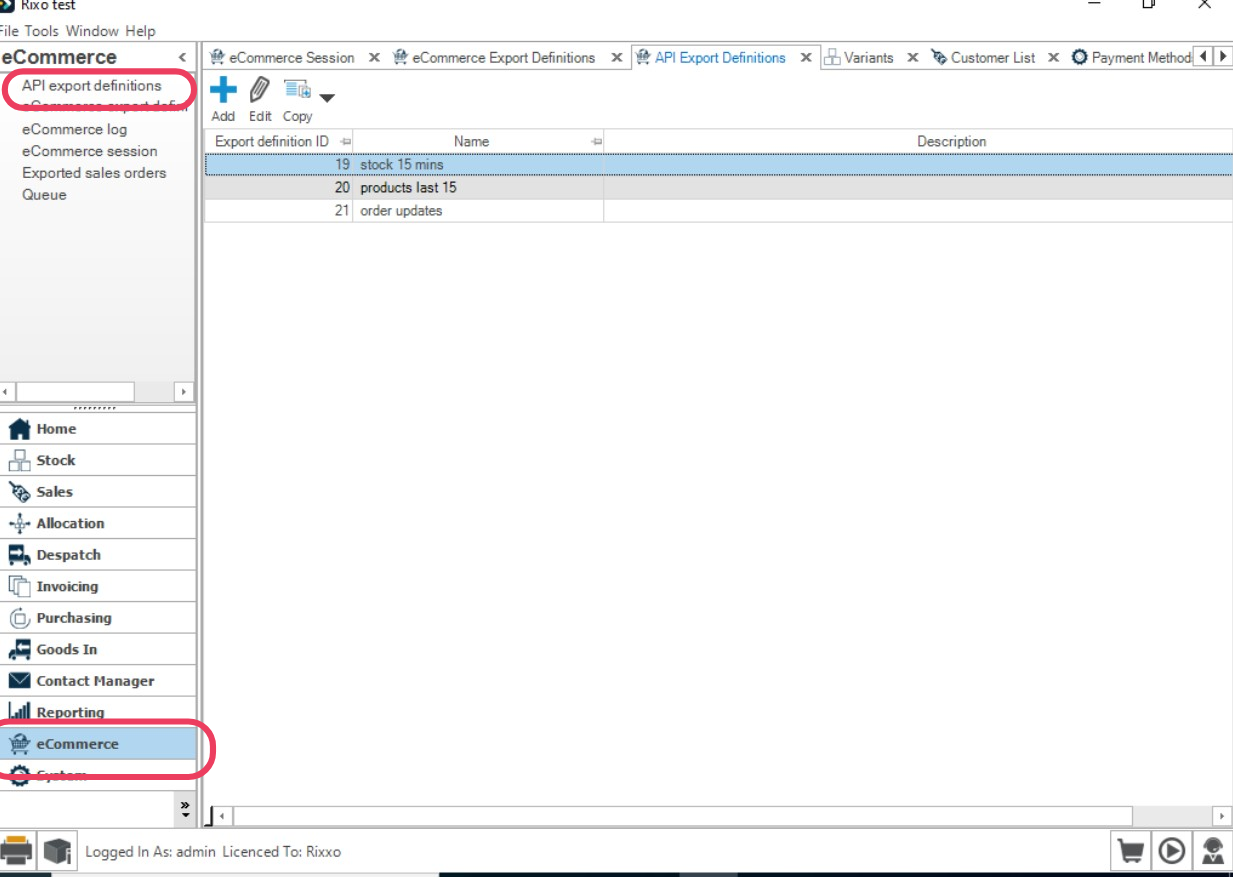
- Click Add
- Name it clearly, e.g., ShopWise Product Sync
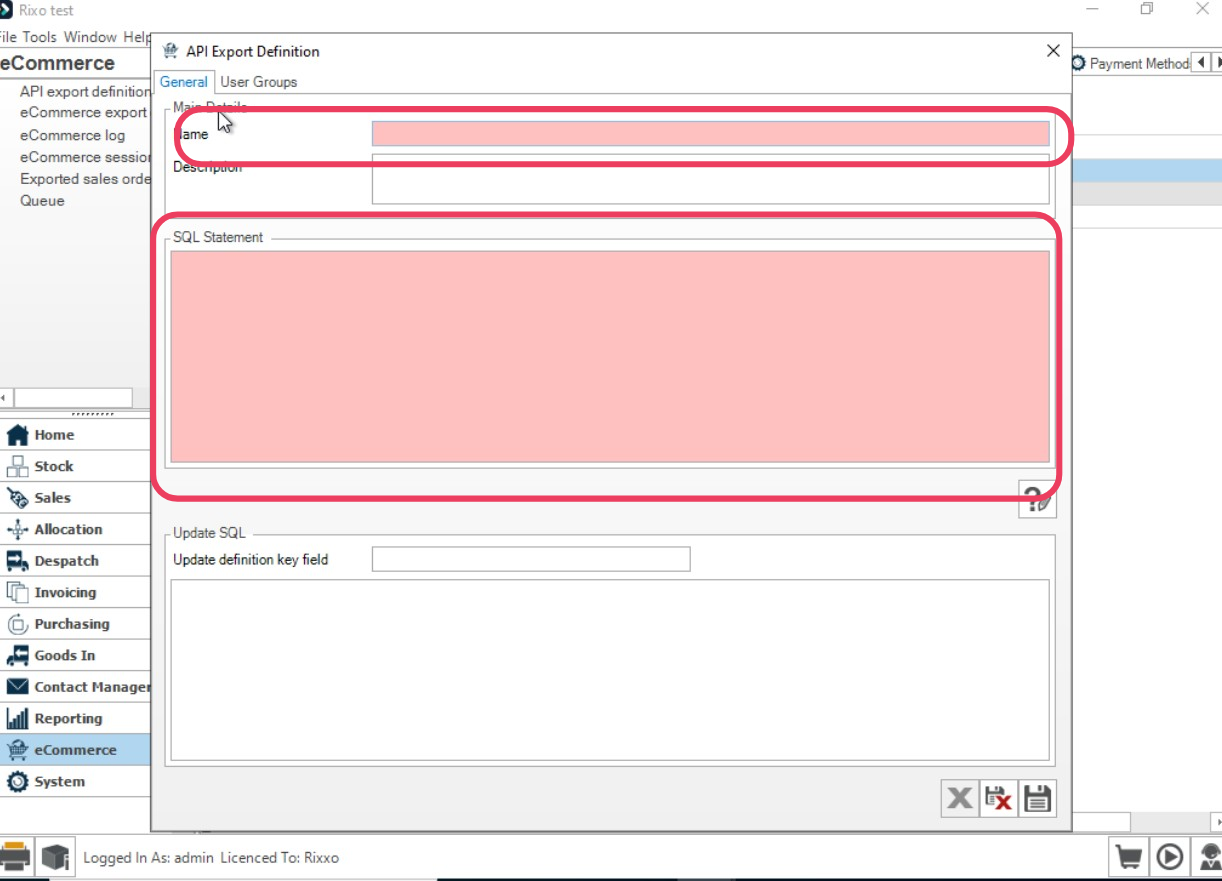
- In SQL Statement, paste this example (15-minute window):
WITH DateCheck AS (
    SELECT DATEADD(MINUTE, -15, GETDATE()) AS DateFifteenMinutesAgo
)
SELECT
  variant_detail.vad_variant_code              AS sku,            -- REQUIRED: used to match Shopify variants
  variant_detail.vad_description               AS name,
  variant_analysis.vaa_c_1                     AS brand,
  variant_detail.vad_weight                    AS weight,
  variant_detail.vad_length                    AS length,
  variant_detail.vad_width                     AS height,
  variant_detail.vad_depth                     AS width,
  variant_detail.vad_commodity_code             AS commodityCode,
  variant_detail.vad_country_code_of_origin    AS countryCodeOfOrigin,
  variant_foreign_price.vafp_rsp_exc_vat       AS regularPrice,
  variant_foreign_price.vafp_vr_id             AS taxRateId
FROM variant_detail
LEFT JOIN variant_analysis
  ON variant_detail.vad_id = variant_analysis.vaa_vad_id
LEFT JOIN variant_setting
  ON variant_detail.vad_id = variant_setting.vas_vad_id
LEFT JOIN variant_foreign_price
  ON variant_detail.vad_id = variant_foreign_price.vafp_vad_id
 AND variant_foreign_price.vafp_c_id = 1
CROSS JOIN DateCheck
WHERE
      vad_input_datetime         >= DateFifteenMinutesAgo
   OR vafp_input_datetime        >= DateFifteenMinutesAgo
   OR vad_last_amended_datetime  >= DateFifteenMinutesAgo
   OR vafp_last_amended_datetime >= DateFifteenMinutesAgo;
Step 2: Get the Export Definition ID
- In API Export Definitions, right-click the grid and choose Edit Grid Layout
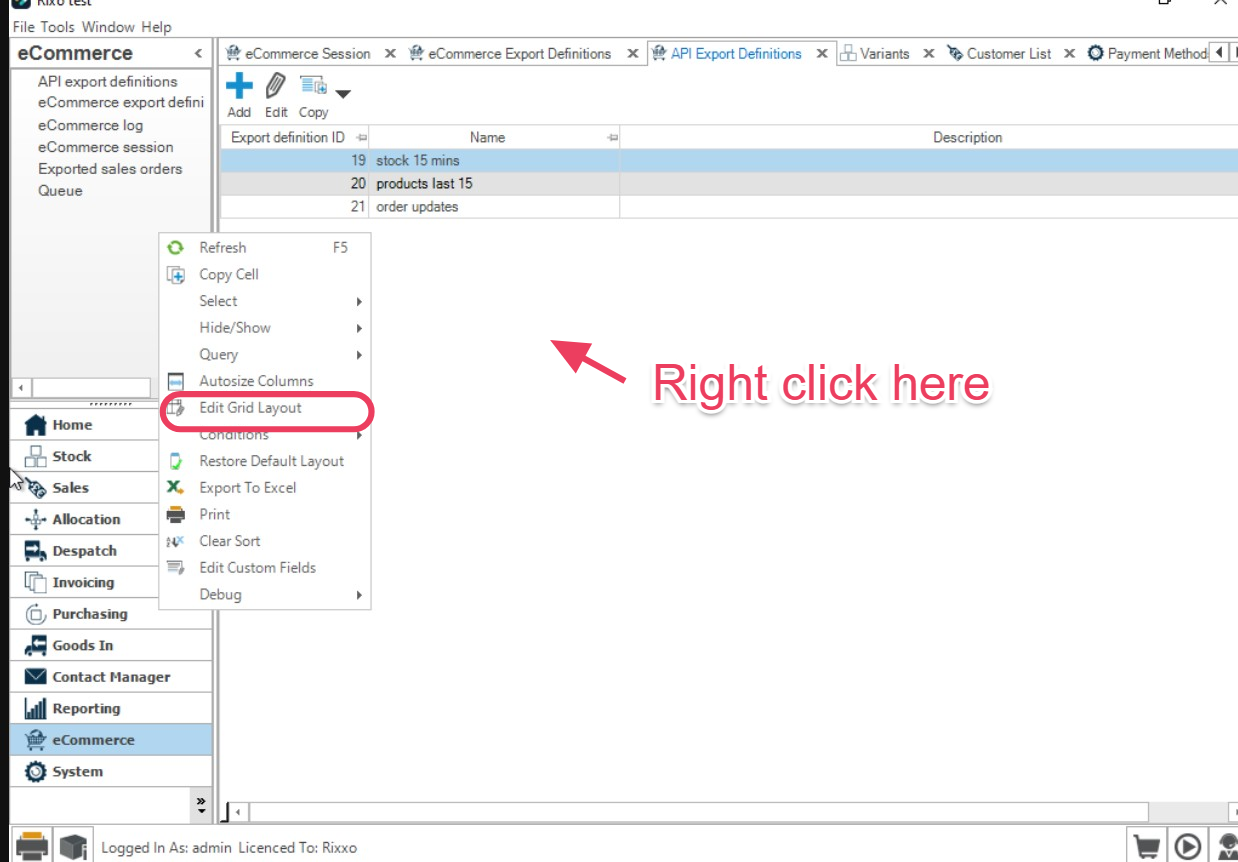
- Add Export Definition ID to the grid
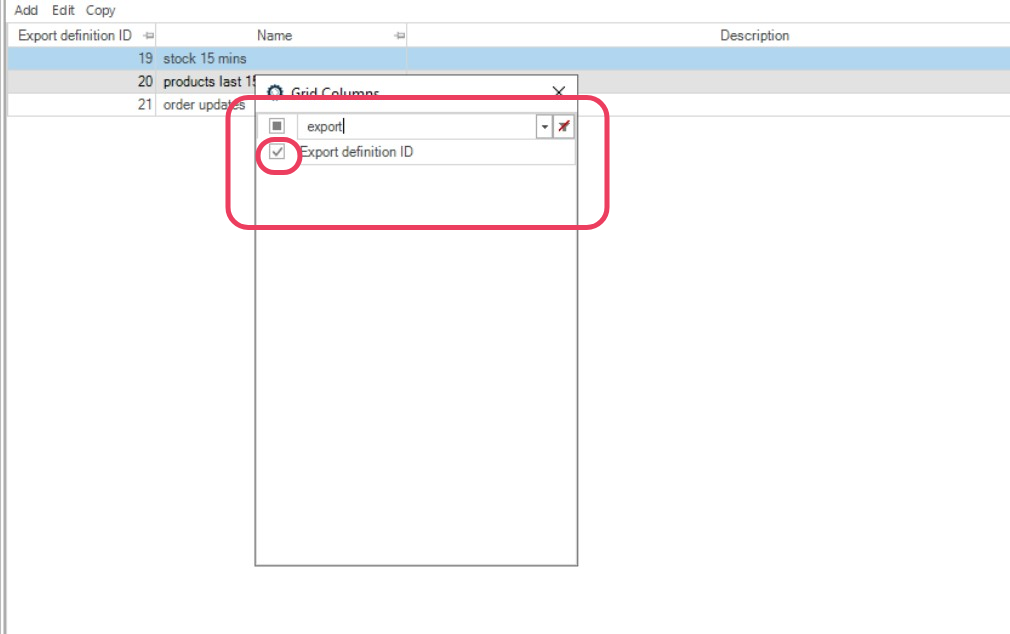
- Save and note the Export Definition ID for your product export
Configure Product Mapping in ShopWise
- In Shopify, open ShopWise → Configuration → Product Mapping
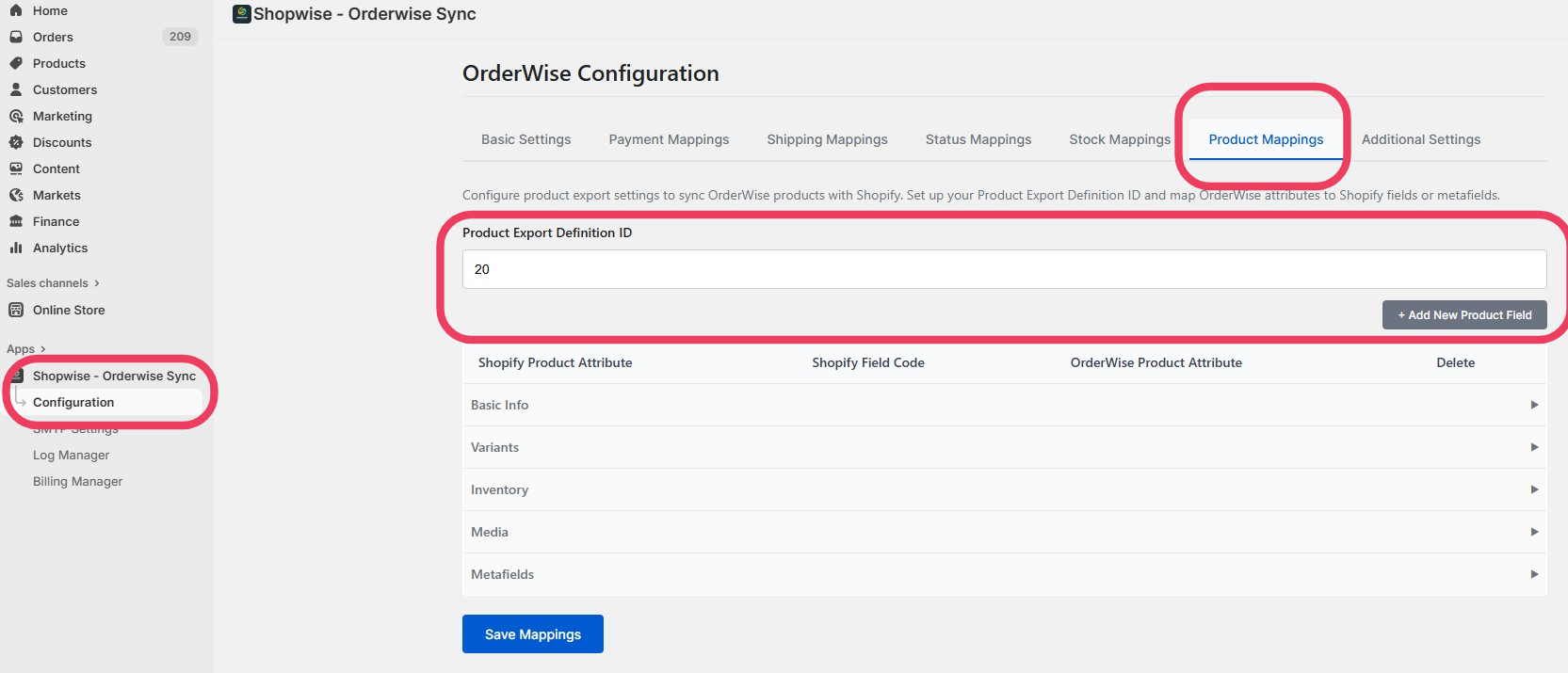
- Enter the Product Export Definition ID from OrderWise
- Configure field mappings to Shopify metafields
Example Output
The export definition returns data in this format:
{
  "sku": "TEST-123",
  "name": "test product 32",
  "brand": null,
  "weight": 15.0,
  "length": 10.0,
  "height": 10.0,
  "width": 0.0,
  "commodityCode": null,
  "countryCodeOfOrigin": null,
  "regularPrice": 15.0,
  "taxRateId": 1
}
Field Mapping Configuration
Required Fields
SKU Field
- Must remain as
sku- Do not change this field name - Purpose: Used to match Shopify variants
- Source: OrderWise
variant_code
Common Field Mappings
Product Information
name→ Product title or description metafieldbrand→ Brand metafieldweight→ Weight metafieldlength,height,width→ Dimensions metafields
Pricing Information
regularPrice→ Price metafieldtaxRateId→ Tax rate metafield
Compliance Fields
commodityCode→ HS code metafieldcountryCodeOfOrigin→ Country of origin metafield
Adding New Field Mappings
Step 1: Add Field to Export Definition
- Edit your OrderWise export definition SQL
- Add the new field to the SELECT statement
- Use a clear alias name for the field
-- Example: Adding a new field
SELECT
  variant_detail.vad_variant_code AS sku,
  variant_detail.vad_description AS name,
  -- Add your new field here
  variant_detail.vad_custom_field AS customField
FROM variant_detail
-- ... rest of query
Step 2: Configure Mapping in ShopWise
- Go to Configuration → Product Mapping
- Add a new mapping for your field
- Specify the Shopify metafield namespace and key
- Save the configuration
Shopify Metafield Configuration
Metafield Structure
Shopify metafields use this structure:
- Namespace: Grouping identifier (e.g., "custom", "product")
- Key: Specific field identifier (e.g., "brand", "weight")
- Type: Data type (text, number, boolean, etc.)
Example Metafield Mappings
OrderWise Field: brand
Shopify Metafield: custom.brand
Type: single_line_text_field

OrderWise Field: weight
Shopify Metafield: custom.weight
Type: number_decimal

OrderWise Field: commodityCode
Shopify Metafield: customs.hs_code
Type: single_line_text_field
Time Window Configuration
Default Settings
- Time Window: 15 minutes (
DATEADD(MINUTE, -15, GETDATE())) - Polling Frequency: ShopWise checks every 15 minutes
- Recommendation: Keep window ≥ 15 minutes to avoid missing updates
Adjusting Time Window
-- For 1 hour window
SELECT DATEADD(HOUR, -1, GETDATE()) AS DateOneHourAgo

-- For 24 hour window
SELECT DATEADD(DAY, -1, GETDATE()) AS DateOneDayAgo
Testing Product Updates
Verification Steps
- Check Export Data: Run the SQL query directly in OrderWise
- Verify SKUs: Ensure OrderWise variant codes match Shopify SKUs
- Test Field Updates: Change a product field in OrderWise
- Monitor Shopify: Check if the Shopify product updates within 15 minutes
- Review Logs: Check ShopWise logs for any sync errors
Common Issues
Products Not Updating
- Verify Export Definition ID is correct
- Check that export returns data for recent changes
- Ensure SKU matches exactly between systems
Field Mapping Errors
- Verify metafield namespace and key are correct
- Check that metafields exist in Shopify
- Ensure data types are compatible
Performance Issues
- Consider filtering by product categories
- Adjust time window based on update frequency
- Monitor OrderWise database performance
Advanced Configuration
Filtering Products
You may want to filter products by specific criteria:
-- Example: Only sync products with specific category
WHERE variant_detail.vad_category_id = 123
  AND vad_input_datetime >= DateFifteenMinutesAgo
Custom Field Requirements
- SQL Knowledge: Adding custom fields requires SQL editing skills
- OrderWise Structure: Understanding of OrderWise database schema
- Testing: Always test custom queries before deploying
Best Practices
Field Management
- Use consistent field naming conventions
- Document all custom field mappings
- Test field updates before going live
Performance Optimization
- Filter by changed products only (as shown in SQL)
- Consider product categories or warehouses for large datasets
- Monitor export performance in OrderWise
Maintenance
- Review mappings when adding new product fields
- Update mappings if OrderWise structure changes
- Monitor integration performance regularly
Next Steps
With product updates configured:
- Troubleshooting - Test the complete integration
- Log Manager - Monitor integration health
- Go Live - Deploy your integration to production
Product updates configured? Proceed to Troubleshooting to test your complete integration.