
Shipping Mapping
Shipping mapping allows you to assign OrderWise shipping method IDs to Shopify shipping methods, ensuring orders display the correct shipping information in OrderWise.
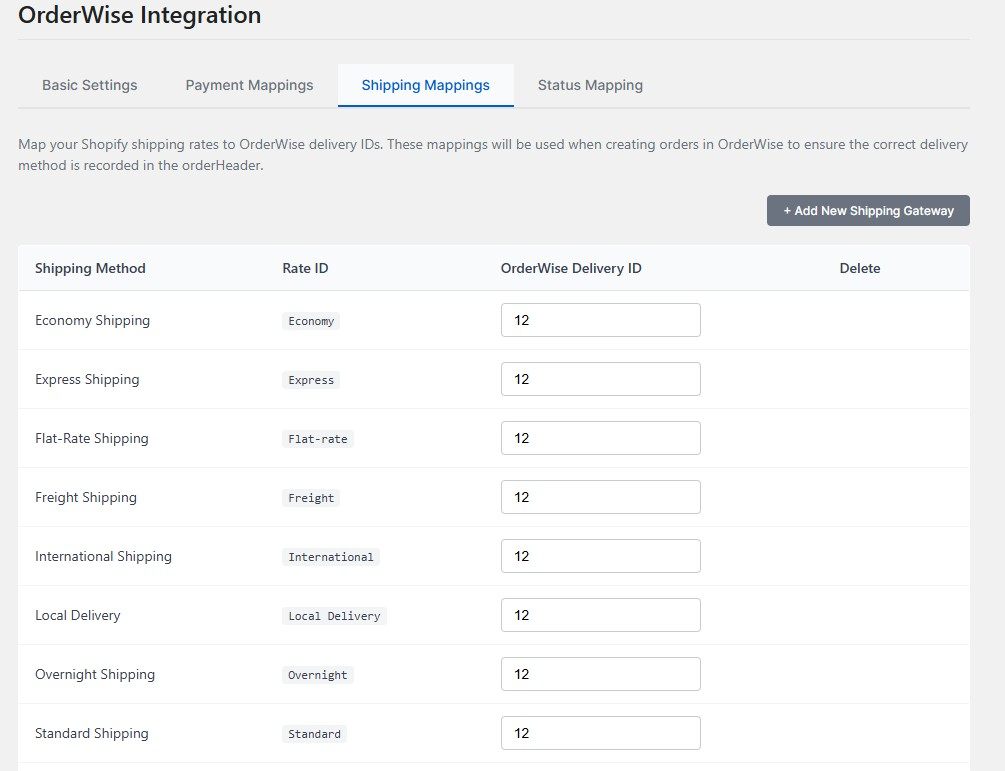
How Shipping Mapping Works
- Shopify Shipping Methods → OrderWise Shipping IDs
- Rate ID Matching: Uses Shopify's rate ID for accurate identification
- Flexible Configuration: Add new shipping methods as needed
- Order Processing: Ensures proper shipping method assignment in OrderWise
Finding OrderWise Shipping IDs
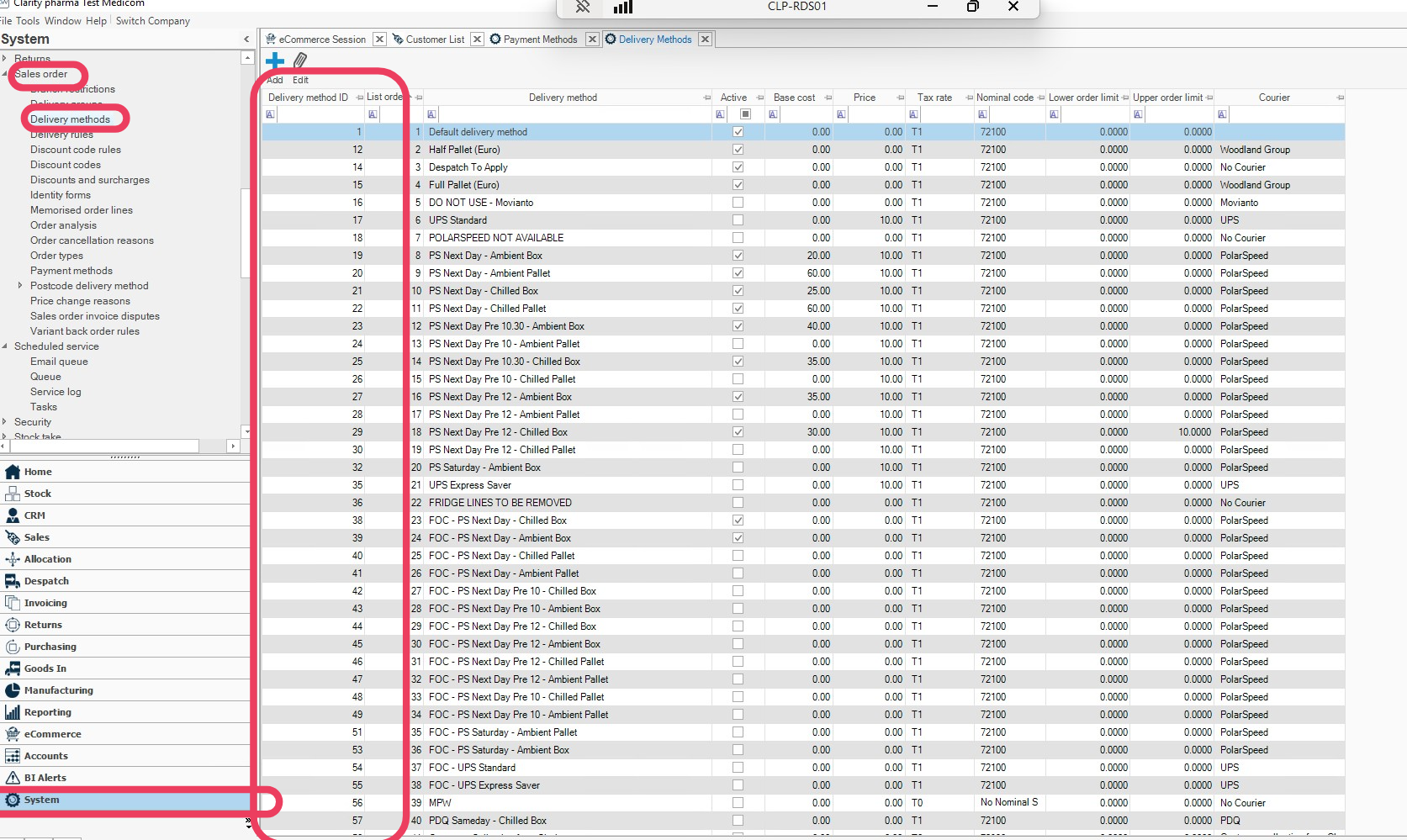
To map shipping methods, you need the shipping method IDs from OrderWise:
- Log in to OrderWise
- Click System in the bottom left menu
- Navigate to Sales Order → Shipping Methods in the top left menu
- Right-click on the screen and select Edit Grid Layout
- Add the ID column to the grid
- Note the IDs for each shipping method you want to map
Adding Shipping Method Mappings
Step 1: Add New Shipping Method
- In ShopWise, go to Configuration → Shipping Mappings
- Click Add new shipping method in the top right
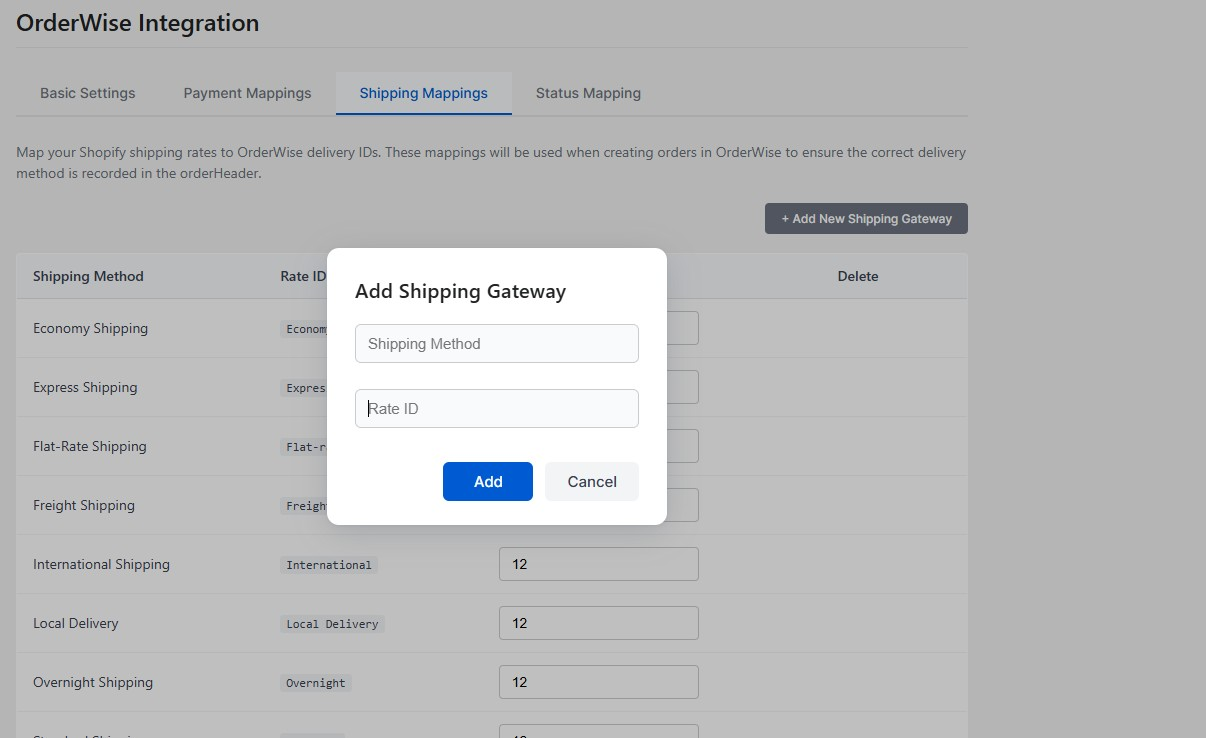
Step 2: Configure Shipping Method
You'll be asked to provide:
1. Shipping Method
- This is the display name for the shipping method
- Used as the admin label in ShopWise
- Example: "Standard Delivery", "Express Shipping", "Next Day"
2. Rate ID
- This is the ID that Shopify uses for the shipping method
- Must match exactly or the mapping won't work
- Found in Shopify's shipping settings or order data
Step 3: Map to OrderWise
- Enter the OrderWise Shipping Method ID from the previous step
- Click Save to apply the mapping
Common Shipping Methods
Standard Delivery
- Rate ID: Usually
standardorground - OrderWise ID: Your standard delivery shipping method ID
Express Shipping
- Rate ID:
expressorexpedited - OrderWise ID: Your express shipping method ID
Next Day Delivery
- Rate ID:
next_dayorovernight - OrderWise ID: Your next day shipping method ID
International Shipping
- Rate ID:
internationalorworldwide - OrderWise ID: Your international shipping method ID
Free Shipping
- Rate ID:
freeorfree_shipping - OrderWise ID: Your free shipping method ID
Finding Shopify Rate IDs
To find the exact Rate ID that Shopify uses:
- Go to Settings → Shipping in Shopify admin
- Check your shipping zones and rates
- Look at order details to see the shipping method used
- Use Shopify's API or admin interface to get exact rate names
- Check carrier-calculated shipping settings if applicable
Example Configuration
Shipping Method: Standard Delivery
Rate ID: standard
OrderWise Shipping ID: 1

Shipping Method: Express Shipping
Rate ID: express
OrderWise Shipping ID: 2

Shipping Method: Next Day Delivery
Rate ID: next_day
OrderWise Shipping ID: 3

Shipping Method: Free Shipping
Rate ID: free_shipping
OrderWise Shipping ID: 4
Testing Shipping Mapping
Verification Steps
- Create Test Order: Place a test order in Shopify with each shipping method
- Check OrderWise: Verify the order appears with the correct shipping method
- Review Logs: Check ShopWise logs for any mapping errors
- Test Edge Cases: Try orders with unmapped shipping methods
Common Issues
Shipping Method Not Mapped
- Check that Rate ID matches exactly (case-sensitive)
- Verify OrderWise Shipping ID is correct
- Ensure the shipping method exists in OrderWise
Orders Using Wrong Shipping Method
- Double-check Rate ID spelling and format
- Verify OrderWise Shipping ID corresponds to the intended method
- Check for duplicate or conflicting mappings
Carrier-Calculated Shipping
- Some shipping methods use dynamic rate IDs
- May require special handling or additional configuration
- Check with your shipping provider for rate ID format
Best Practices
Naming Conventions
- Use clear, descriptive names for shipping methods
- Include delivery timeframes when applicable
- Avoid special characters or spaces in Rate IDs
Documentation
- Keep a record of all shipping method mappings
- Document any special configurations or requirements
- Note any shipping methods that don't need mapping
Maintenance
- Review mappings when adding new shipping methods
- Update mappings if shipping providers change
- Test mappings after any OrderWise configuration changes
Integration with Other Systems
Carrier Integration
- Ensure shipping methods align with your carrier services
- Consider how shipping methods affect fulfillment workflows
- Verify that mapped methods work with your OrderWise fulfillment process
Pricing Considerations
- Shipping costs are typically handled by Shopify
- OrderWise may need shipping cost information for accounting
- Consider how shipping costs are passed through the integration
Next Steps
With shipping mapping configured:
- Status Mapping - Configure order status synchronization
- Product Updates - Set up product data synchronization
- Troubleshooting - Test the complete integration
Shipping mapping complete? Proceed to Status Mapping to configure order status synchronization.